
When a Lenovo PC refuses to start normally, resetting it from startup is the most direct way to get the system working again. There are several ways to do this, but they are not interchangeable: the Novo button, the Windows Recovery Environment (WinRE), or a manufacturer recovery USB drive. The right choice depends on the model, the state of the system, and whether the drive is encrypted with BitLocker.
Novo button, WinRE, or USB drive: which Lenovo reset method should you choose?
Not all methods are available on every Lenovo model, and they produce different results. The table below summarizes the three main ways to reset your PC at startup.
| Method | How to access it | Availability | Restores the original Lenovo environment |
|---|---|---|---|
| Novo button (OneKey Recovery) | With the PC off, press the small button on the side or back | IdeaPad and Yoga series, some ThinkPads | Yes (if the recovery partition is still present) |
| WinRE (Reset this PC) | Force a restart 3 times or use the advanced options | Any PC running Windows 10/11 | No (generic Windows reinstallation) |
| Manufacturer recovery USB drive | Boot from the USB drive through the BIOS | Compatible models; the drive must be ordered from Lenovo | Yes |
The Novo button is the quickest option on models that have one. It opens a dedicated startup menu that lets you access system recovery without going through Windows. On recent ThinkPads, this button is sometimes replaced by a key combination (F11 at startup, for example).
The steps to reset a Lenovo PC at startup depend on whether the factory recovery partition is intact. If it has been deleted (intentionally or during repartitioning), only the other two methods are available.
Resetting a Lenovo PC at startup with the Novo button: step-by-step instructions
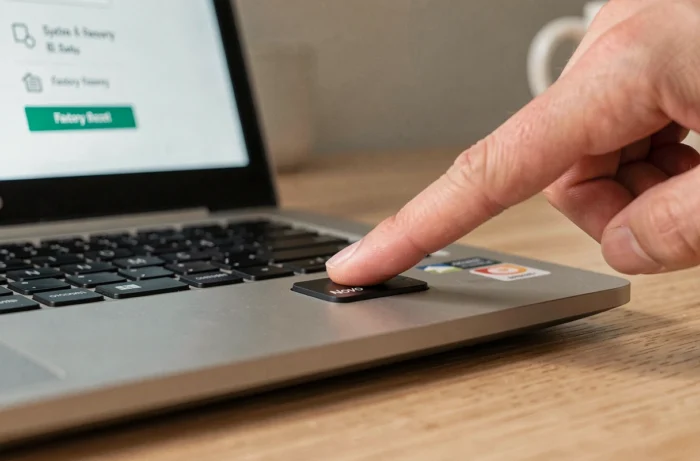
The Novo button is a small pinhole marked with a curved arrow, located on the side of the PC or near the power button. Use a straightened paper clip or another thin object to press it.
- Shut down the PC completely (do not put it to sleep or hibernate). Disconnect USB devices, leaving only the power cable connected.
- Briefly press the Novo button. The Novo menu appears with several options: Normal Startup, BIOS Setup, Boot Menu, and System Recovery.
- Select System Recovery. The PC loads the OneKey Recovery environment, which offers to restore the factory settings from the dedicated partition.
- Confirm the restore. The process formats the system partition and reinstalls Windows with the preloaded Lenovo drivers and software. It usually takes several dozen minutes.
All personal data on the system drive will be erased during this process. Files stored on a secondary partition (D:, for example) are not affected by default, but it is best to back up anything important before starting.
Resetting a Lenovo PC when Windows won’t start: WinRE and recovery
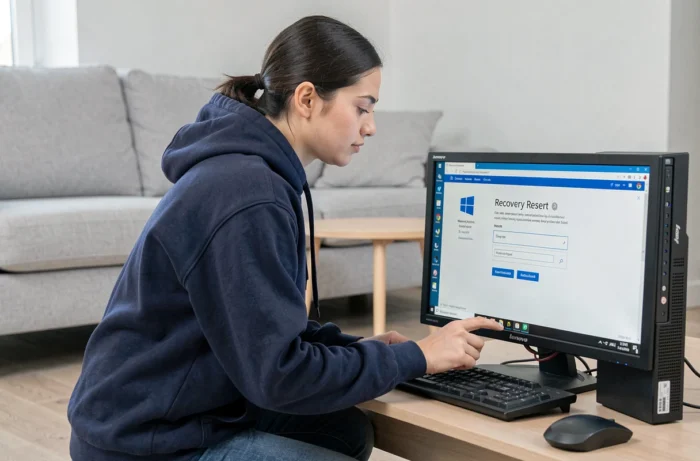
If your PC does not have a Novo button or the recovery partition is missing, the Windows Recovery Environment (WinRE) can help. Windows 10 and 11 launch it automatically after three consecutive startup failures.
Force access to WinRE
Turn on the PC and wait for the Lenovo logo to appear, then press and hold the power button until the PC shuts down. Repeat this sequence three times. On the fourth startup, Windows loads WinRE and displays the “Choose an option” screen.
From this menu, select Troubleshoot, then Reset this PC. You will then have two options: keep your personal files (only programs and settings are removed) or remove everything (a full reset).
Cloud download or local reinstall
Windows then offers to download a fresh copy of the system from Microsoft’s servers or use the files already on the drive. If Windows is corrupted, a cloud download is more reliable because it does not rely on potentially damaged files. However, it requires a network connection (Wi-Fi or Ethernet via a USB adapter), and download times may vary.
A local reinstall is faster, but may fail if the system files are corrupted. In that case, Windows displays an error message, and the only remaining options are a cloud download or using a Windows installation USB drive.
BitLocker and the recovery partition: two common Lenovo pitfalls
Two issues frequently arise when resetting a PC at startup, but are rarely mentioned in quick guides.
BitLocker encryption enabled by default
The recovery environment may require the BitLocker key before performing any operation on the drive. On many Lenovo laptops shipped with Windows 11, BitLocker is enabled automatically during initial setup if the PC has a TPM and a Microsoft account.
The recovery key is stored in the associated Microsoft account (available at account.microsoft.com/devices/recoverykey). Without this key, the reset is blocked, and Microsoft Support cannot recreate it. Checking that you have access to the key before starting is a simple precaution that can prevent a complete lockout.
Recovery partition missing
The Lenovo recovery partition takes up several gigabytes. Some users delete it to free up disk space, and third-party partitioning tools may erase it accidentally. If it is missing, the Novo button no longer offers the System Recovery option.
For some models, Lenovo offers a factory recovery USB drive that can be ordered through its support team. A standard Windows installation drive does not restore the original Lenovo environment (specific drivers and manufacturer utilities). This distinction matters if the PC uses components whose drivers are not included in the generic Windows library.
Before resetting your PC, it is worth checking two things: whether the recovery partition is present (you can see it in Disk Management in Windows) and whether you can access the BitLocker key. These checks take just a few minutes and can make the difference between a successful reset in an hour and a PC that is unusable because you do not have the decryption key.